How Peel turns what you save into a story
Newsletters by email, articles and files from the share sheet, and a two-minute story at the end. Here is every step.

Step 1: Get Peel and sign in
Download Peel from the App Store on your iPhone and sign in. It is free, with a daily allowance of stories.
Step 2: Copy your Peel address
Peel gives you a personal email address. Anything sent to it becomes a story that only you can see. Copy it from the app whenever you need it. It sits in the Add a story sheet, under “or forward an email to”.
Step 3: Send newsletters
Subscribe to newsletters with your Peel address, or move an existing subscription to it. To try one issue, forward it from any mail app. Automatic forwarding rules are not supported yet; the newsletter guide explains the options.
Step 4: Share articles
In Safari, or any app that shares links, tap Share and choose Peel. You can also paste a link inside the app. Peel fetches the page and cleans away ads, menus and footers. Pages behind a paywall or a login may give a short story. If Peel cannot read a link at all, you can paste the article’s text instead.
Step 5: Share PDFs and books
Share a text PDF or a DRM-free EPUB from the Files app, or any app with a share sheet. You can also tap Add a story in Peel, then Choose a PDF or EPUB. A short file becomes one story. A file or link with more than 15,000 words becomes a book of stories, one per chapter, and Peel makes each next part when you ask for it. Copy-protected ebooks and scanned PDFs do not work.
Step 6: Get a ping when it is ready
Peel works in the background, so you can close the app. After your first story, Peel asks whether to notify you when a story is ready. Stories you add ping you at once; newsletters arrive quietly, a few at a time. The Today’s Peel widget shows how many of today’s stories you have not read yet.
Step 7: Read the story
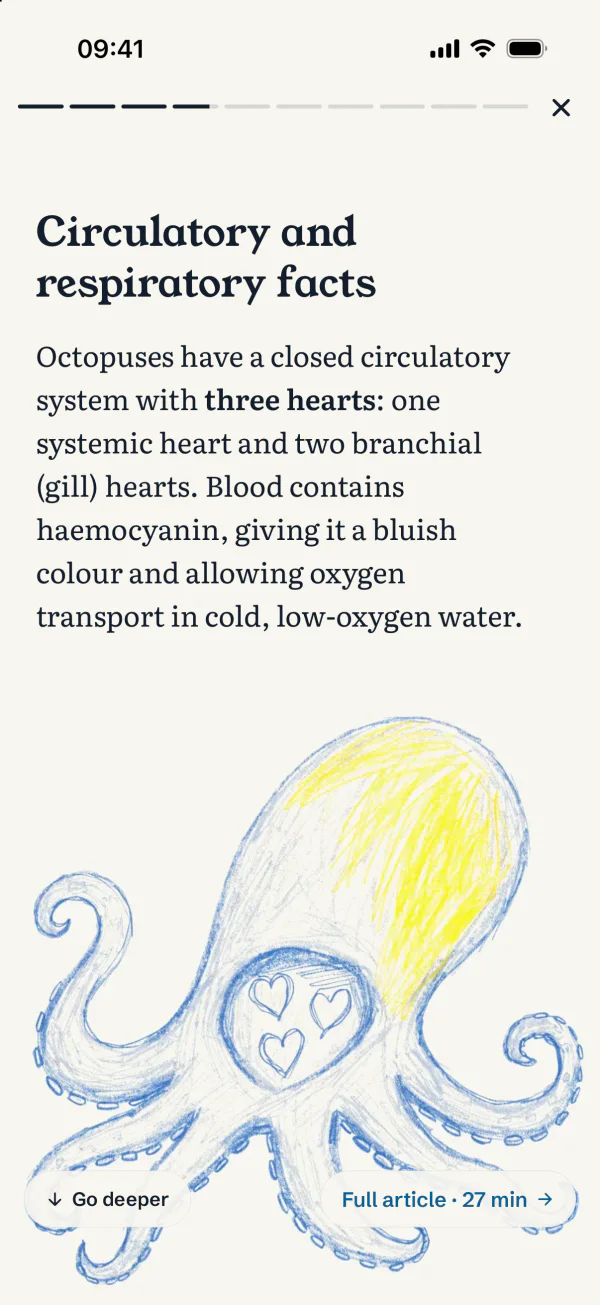
Peel writes a story of a few short pages and gives every page a drawing of what it is about, in your chosen style: crayon, line ink or charcoal line. Tap through it in about two minutes. Stories collect in your daily edition, grouped by day.
Step 8: Decide whether to read the whole thing
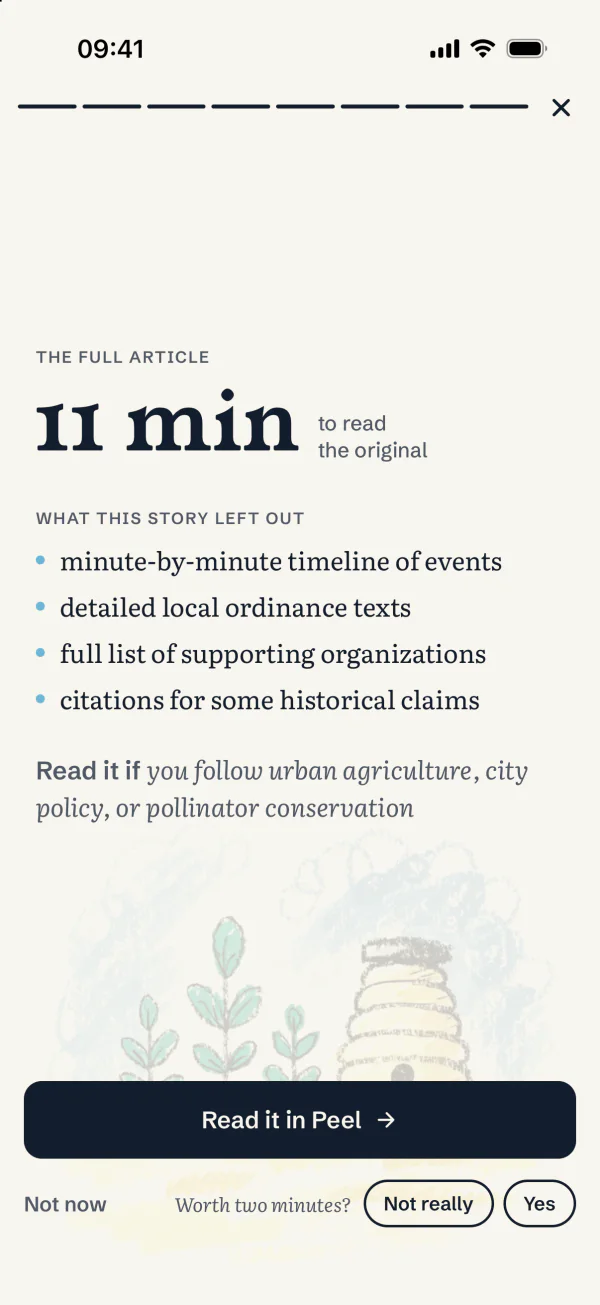
The Full read? page at the end of a story shows how long the original takes, what the story left out and who should read it in full. Go deeper adds up to three pages on a point of a long article, and the Peel reader opens the full text with the story as its outline.
Step 9: Share a story worth passing on
Tap Share on a story. Share as pictures turns its pages into images for Instagram, TikTok or Messages. Send a private link gives a readpeel.com page of the story that anyone with the link can read. How sharing works.
Where to go from here
The FAQ answers the common questions. If you are drowning in newsletters, start with how to manage newsletter overload.