Your edition, on the Home Screen
The Today's Peel widget shows how many of today's stories you have not read yet and about how long they take. Tap it to open your edition.
The Today's Peel widget is new in Peel 1.1. It puts your daily edition on your iPhone Home Screen: how many new stories arrived today, about how long they take to read, and, in the medium size, the first headline. Tap the widget to open your edition.
A number you can finish
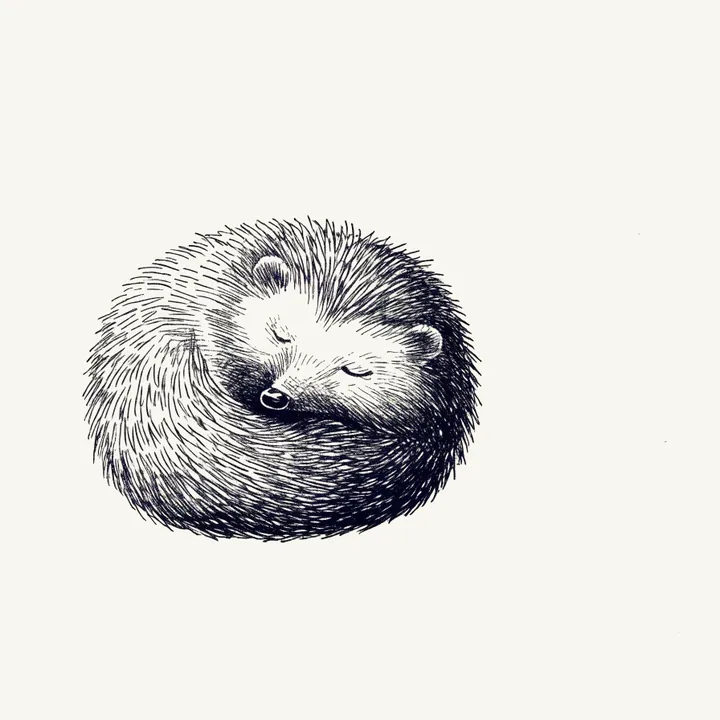
Most apps put a red badge on their icon, and the number only grows. The widget works the other way. It counts the stories that arrived today and that you have not read yet. When you read them, the count goes down. When you have read them all, the widget says "All read. Nicely done." and the hedgehog falls asleep.
That fits the idea of the daily edition: a small paper with a clear end, not an endless feed.
What the widget shows
The widget comes in two sizes.
- Small. "Today's Peel", the number of new stories in large type, and about how many minutes they take. A drawing of the hedgehog reads in the corner.
- Medium. The first new story's headline and its source, such as a newsletter's name or "Part 2 of 43" for a book, with "3 new stories · about 6 min" below it.
When there is nothing new, the widget says so:
- "All read. Nicely done." You have read today's stories.
- "A new day. Open Peel for today's stories." It is after midnight, and Peel has not counted the new day yet.
- "Open Peel to start your edition." You are not signed in, or you signed out.
How to add the widget
- Touch and hold an empty part of your Home Screen until the apps start to jiggle.
- Tap Edit, then Add Widget.
- Search for Peel, then choose Today's Peel.
- Swipe to pick a size, small or medium, and tap Add Widget.
- Drag it where you want it, then tap Done.
How it stays up to date
Peel updates the widget while Peel is open: when a new story arrives in your edition, when you read one, or when you delete one. It does not update while Peel is closed. A newsletter that arrives overnight shows on the widget only after you open Peel. At midnight, the widget shows "A new day" until you open Peel again.
An example
Here is a made-up example. You keep the medium widget on your first Home Screen. On the train in the morning, you open Peel and find four new stories. You read two and close the app. Back at your desk, the widget shows the next headline and "2 new stories · about 4 min", a quiet reminder of what is left. On the way home you tap it and read the last two. The widget says "All read. Nicely done."
Limits
- Home Screen only. There is no lock screen widget and no large size.
- One headline. The medium widget shows the first new story only. Open Peel for the rest of the edition.
- It updates through Peel. The widget does not fetch stories on its own. It shows what Peel counted the last time it was open.
Tips
- Put the widget next to the apps you open in the morning. Seeing "3 new stories" is often all the reminder you need.
- Turn on notifications to hear about new stories while Peel is closed. The widget then keeps count of what you have not read yet.
Questions
- Which sizes are there?
- Small and medium. The small widget shows how many new stories wait and about how many minutes they take. The medium widget also shows the first new story's headline and where it came from.
- Why does the widget say "A new day"?
- At midnight, the counts belong to yesterday. The widget asks you to open Peel, which counts today's stories and updates it.
- Can other people see my stories on the widget?
- The medium widget shows one headline and its source, so anyone who sees your Home Screen sees it too. Choose the small widget if you prefer only a number.
- Is there a widget for the lock screen?
- No. Today's Peel is a Home Screen widget, in small and medium sizes.